Crisis Capture

Capture evidence, even when locked

Crisis Capture records audio and your location trail as it happens, with your decoy screen covering it. The phone looks like it’s doing nothing at all.

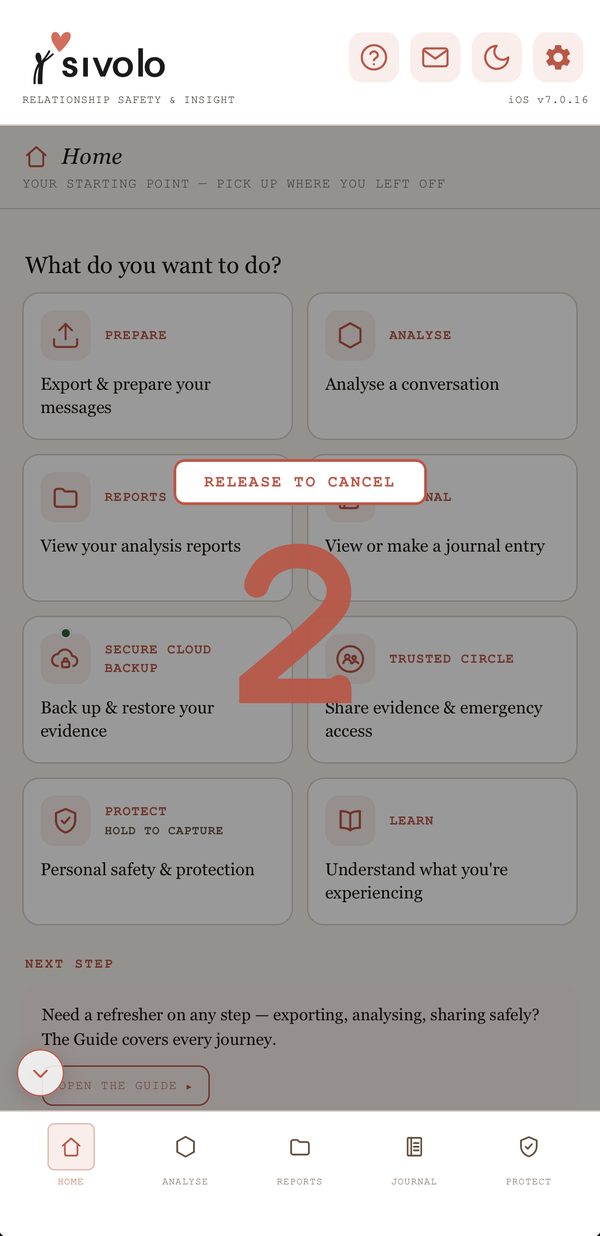
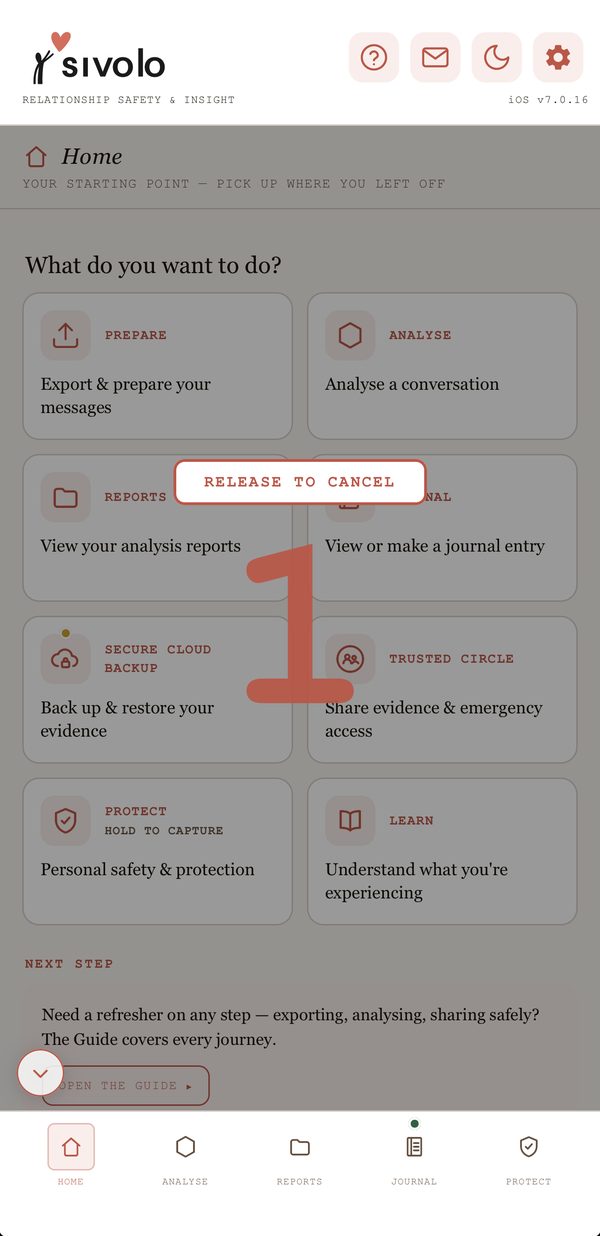
  • Start it by holding the Protect tile on Home for two seconds, with a 3-2-1 countdown you can let go of to cancel
  • Or set up a one-touch start: the Action Button or Back Tap on iPhone, a Quick Settings tile or widget on Android
  • If it’s cut off by a flat battery or the app closing, what was recorded is recovered. With Secure Cloud Backup on, it’s also sent to your backup, encrypted, every 30 seconds as it records, so even if the phone is taken, at most the last 30 seconds is lost. How it works
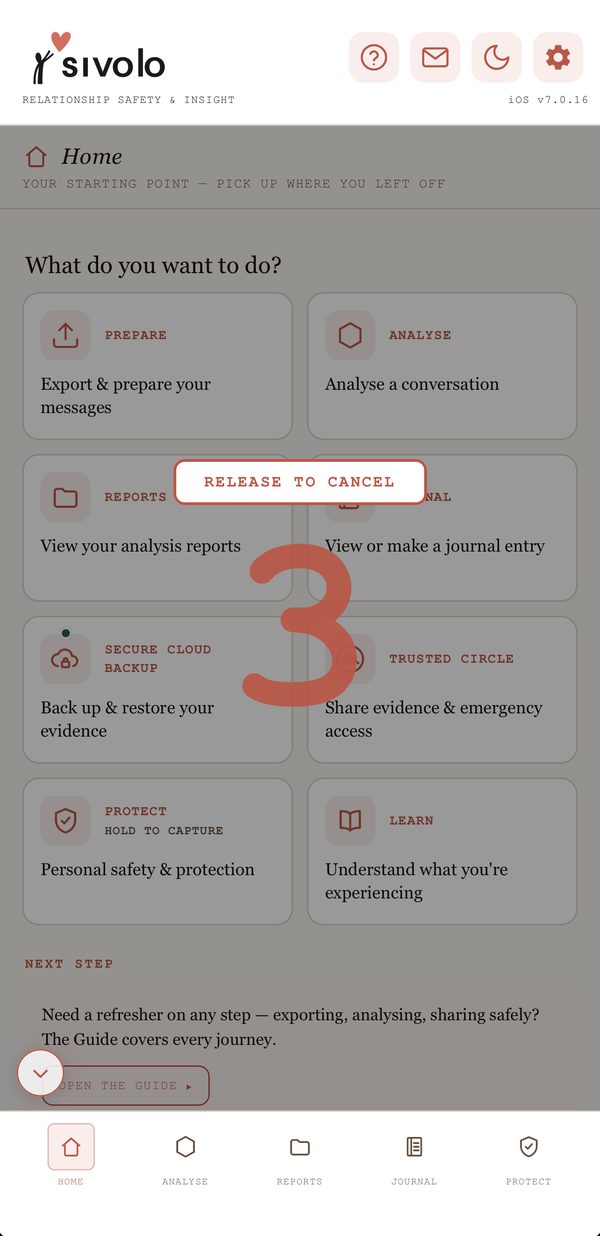
Holding the Protect tile: the Home screen dims and a large 3 appears beneath Release to cancel
The countdown at 2, with Release to cancel still showing
The countdown at 1: keep holding and the capture starts

Actual app screens · holding the Protect tile on Home
iPhone Action Button

Start it without looking

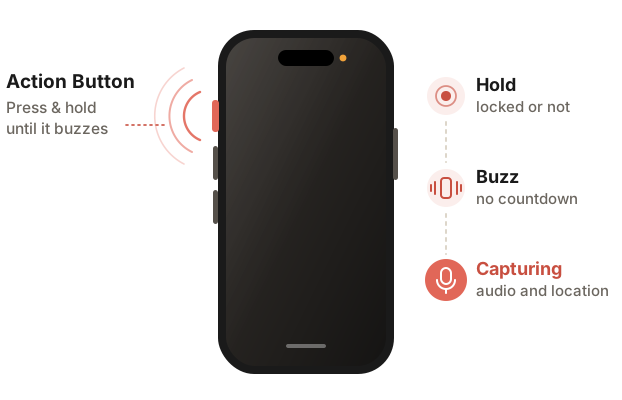
On iPhone 15 Pro and Pro Max, and every iPhone 16 or later, you can set the Action Button to start Crisis Capture. Press and hold it until you feel the buzz, and the capture starts: no countdown, no screen to find, even with the phone locked in your pocket.

  • No 3-2-1 countdown, because holding the button is already a deliberate act
  • Your decoy covers Sivolo from the start. If the phone was locked, it’s already in place when you unlock
  • It can take a second or two to get going, then the audio records the whole time
  • Set it up once in Settings › Action Button, with a shortcut you name yourself so it means nothing to anyone else
Illustration: press and hold the Action Button on the side of an iPhone, feel the buzz, and the capture starts recording audio and location

Illustration · iPhone 15 Pro, iPhone 16 and newer

While it records

One tap to stop and seal

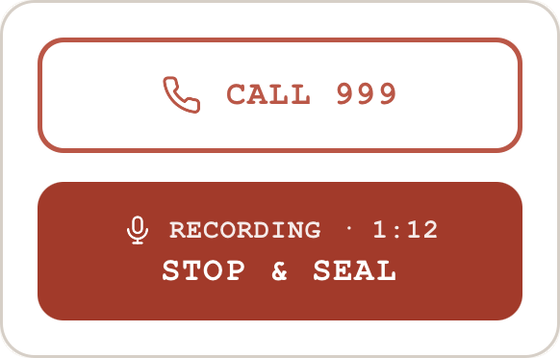
Your decoy covers the screen while a capture runs. Tap it away and the Protect tile on Home shows the capture in progress, with everything you need in one place. Leave it, and the decoy slides back over on its own.

  • The running time, so you know it’s still recording
  • STOP & SEAL ends the capture and seals the recording and location trail into your Journal as an evidential entry, encrypted on your phone
  • CALL 999 opens emergency call help, with your location ready to read out
  • A capture started from the Action Button, Back Tap or a Quick Settings tile shows here too

Your local emergency number, wherever you are. Sivolo uses the number for the country you’re in: 911 in the US and Canada, 112 across Europe, 000 in Australia, 111 in New Zealand and 999 in the UK. Emergency call help checks where you are when it opens, so the number is right even when you travel.

The Protect tile in capture mode: a Call 999 button above a coral Recording 1:12, Stop and Seal button

Actual app screen · the Protect tile during a capture

Emergency call help

Your location, ready to read out

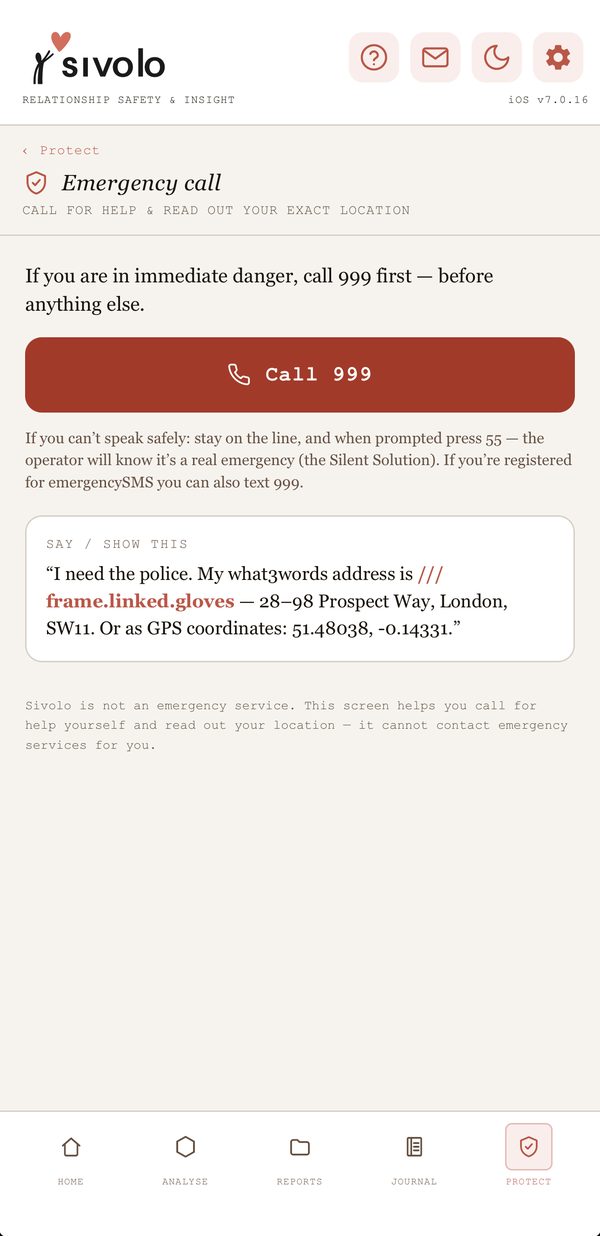
In an emergency it can be hard to say where you are. Sivolo puts it on screen for you and opens your dialler with the local emergency number.

  • Your address, GPS and what3words, refreshed live, in a short script you can read to the operator
  • If you can’t speak safely, the screen explains the Silent Solution: stay on the line and press 55 when prompted
  • Sivolo never calls for you. You press call
The Sivolo emergency call screen with a Call 999 button and the location ready to read out

Actual app screen · example data

Not an emergency service, but ready when you are

If you are in immediate danger, call your local emergency number. In the UK, the National Domestic Abuse Helpline is 0808 2000 247 (free, 24 hours).